Tuesday, August 14, 2018

Revit 2019's New Features Worth Knowing

I looked on the web at blog posts and Autodesk.com for the "New Features in Revit 2019".  There are some good things mentioned, but I have found some other good things that were not.  (Yes I'm a little late getting this posted)

Some very simple improvements have been made to the basic graphic user interface, that are major work flow improvements.

Project Browser - Collapse All & Expand All (v2018.3)

This will save you time trying to find something, or just save time getting from Point A to Point B.  Is this some special new technology that was invented just recently?  No, of course not.  It makes me wonder who is designing the GUI for Revit, and who they are designing it for.


Docking Palettes Made Easy

Now it's easy to dock your Properties palette, or Project Browser to the left or right side of your drawing window.  Yay!

Change The Scale of an Existing Fill Pattern

Yay!  Instead of needing to delete a fill pattern and try it again at a different scale, you can just change the Import Scale factor now!  What the what?


Revit, Stop Asking This Question!

Another amazing break-through is the option to hide future messages, that would ask you if you want like to rename corresponding levels] and views, after you rename a single view, that is the same name as a level.  Are you fricken crazy?  Why would you ever ask this question to someone who just renamed a view anyway?  How much time is this favor supposed to save you if you click on Yes?

News Flash!
Most users click on Yes without even reading the message!  Therefor you end up with Levels named like Furniture Plan - Level 2Which looks great in an elevation view right above Level 1, and below Demolition Plan - Level 3.  WTF Revit, do you not understand how users in the real world behave?  Just don't show me this message ever!


Not a New Feature...

Whenever you create a new workset in a workshared project, Revit will ask you if you want to make that new workset the current workset after you click OK.  As if you needed that 2 second time savings over the time you will spend putting stuff on to the correct workset after you realized there are dozens of elements on the wrong workset because the wrong workset was the active workset!

And another thing, the active workset indicator at the bottom of the program interface is way to subtle.  It needs to be much more obnoxious.  There should be a way to assign one workset as the main modeling workset for your project model, and if that workset is not the active workset, the indicator will appear as big bold and red, or something.  Is that something way beyond today's technology?

Stop making is so easy to put stuff on the wrong workset!


Wednesday, August 8, 2018

Phased and Confused?

This is How to Successfully Use Phases In Revit

Revit has its own way of dealing with existing, demolition and new construction.  This concept is referred to as Phasing.  Learning to use the Phasing feature in Revit can be difficult.  Not because it is hard to use, but because the workflow is not super intuitive.

Part 1 - Overview

To be successful, you must understand the primary factors that control phase graphics (what you see in the view).  The primary factors are as follows…

Element Properties

·        Phase Created
·        Phase Demolished

View Properties

·        Phase Filter
·        Phase

Phasing Settings

·        Project Phases
·        Phase Filters
·        Graphic Overrides


Part 2 - Preparation

Proper preparation is necessary for success.  Follow these 3 major steps…

Step I – Phasing Settings

Open the Phasing manager and review the following…
1.      Setup/Review Project Phases
2.      Setup/Review Phase Filters
3.      Setup/Review Graphic Overrides

Step II – View Setup

Do not model in the documentation views! Create separate views just for modeling.
1.      Create “documentation views” for your sheets
2.      Create “non-documentation views” for your modeling and/or exploring.
a.     Create a set of views for new construction.  Make the phase New Construction
b.     Create a set of views for existing modeling work.  Make the phase Existing         

Step III – Element/Family Phase

1.      Control the Phase Created and Phase Demolished properties of all elements.
a.     The phase setting of the view you work in, determines the phase of the elements you create.
i.        Create new construction elements in a view that has the phase set to New Construction
ii.       Create existing elements in a view that has the phase set to Existing
b.     The phase of an element can also be manually changed via the properties palette.


Part 3 - Time Lines

A demolition drawing shows the point in time before new construction, with certain existing construction elements identified for removal.  Keep in mind that Revit views exist relative to the timeline, the same way that model element properties do.

Simple Timeline

A simple timeline would have 2 phases and 3 moments in time. 
Please note, that Demolition is not considered a phase.

Existing Condit
  
See images of view configurations below…

New Construction Plan


Complex Time Line


Existing Conditions Plan

Demolition Plan

New Construction Plan
A complex timeline would have more than 2 phases and 3 moments in time.  The example below shows a timeline with 4 new construction phases:

·        Existing
·        Phase 1
·        Phase 2               (Phase 1 becomes existing)
·        Phase 3               (Phase 2 becomes existing)
·        Phase 4               (Phase 3 becomes existing)


Thursday, February 9, 2017

What's The Deal With Revit Worksets Anyway?

A Revit Workset is as a named collection of elements, organized by their purpose within the Revit project file.  Worksets are only available in work-shared Revit project files (central files).

Worksets allow you to control various aspects of all the elements within the workset.
You can set a workset to be off by default.  This is good for special purpose elements, where you would have the workset visible only for specific views.  Keep this in mind when you are looking for something you can't see.

Worksets give you the ability to…

  • Control the visibility of elements that belong to a specific workset
  • Segregate elements and control the ownership of everything within a workset
  • Shorten the time it takes to open a Revit file by selecting which worksets not to open, such as a workset used for linked Revit models.

Worksets can be segregated into 4 classifications…

  • Families
  • Project Standards 
  • User-Created 
  • Views

User-Created Worksets

The User-Created Workset is the most recognized kind of workset.  It is as a user-defined collection of model elements.
  • When used properly, they will keep your project well organized and predictable.  
  • When worksets are miss-used or disregarded, your project can be difficult to control. 😱

Using Worksets for Good

User-Created Worksets are known to be good for the following categories of model elements:
  • Model content
  • Linked Revit and CAD Files
  • Levels and grids 
  • Levels and grids for the linked Revit models
  • Rendering specific content
  • On/Off By Default

Avoid Overkill

Too many worksets in a project will increase the likelihood that elements will end up on the wrong workset! Or forgotten!!!
  • Only create worksets that are necessary.  
  • Don’t use them like you would use layers in CAD
  • If you can control the visibility of a specific type of element by its Revit category, then you don't need a workset to control its visibility.


Tuesday, January 19, 2016

Understanding Revit's Design Options

The Design Options feature in Revit allows for the creation of multiple design schemes inside the same project model file.  However, if you do not understand the basics of the process, you can easily get confused or lost.

The following is a simple list of the basic steps in the design option process:
·         Create an Option Set
·         Create Options within the Option Set
·         Add model elements to the Options
·        Create views for each option

Here is a step by step exercise of a basic Design Option scenario...
  1. Go to the Manage ribbon tab and click on the Design Options button.  After the Design Options window pops up, click on the New button under Option Set.
  2. Select the Option Set that was created.  Click the Rename button and give it an appropriate name.
  3. With your new option set selected, click on the New button under Option (not option set).
  4. You should have 2 options under your Option Set, Option 1 & Option 2.
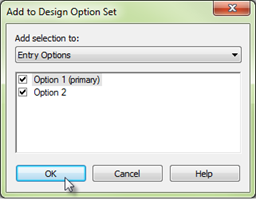
  5. Go to your model.  Select all the model elements that encompass the area where the design options will take place.  This includes any connecting walls, doors, windows, casework, etc.  Click the Add to Set button on the Manage tab.  The Add to Set dialog box will open.  Leave both options checked and click OK.  If you do not have any existing elements to add, that is OK, you can create elements starting with step #8.  
  6. Now you have 2 copies of everything (added to the option set).  One copy is in Option 1 and the other is in Option 2.  None of these elements will be selectable or editable until you change the Active Design Option.  
  7. The Active Design Option setting is normally set to Main Model.  It will display everything not part of a design option, and all the elements in a Primary design option.  Although you can see stuff in a primary design option, you will be unable to select those elements until you set that design option to be active.  Setting a design option to be active can be achieved via the Manage ribbon or at the status bar at the bottom of the Revit GUI (program window).  
  8. Set the active design option to Option 2.  Select the elements you want to remove from Option 2, if any, and delete them.  Edit the remaining elements in the option and/or create new elements.
  9. Change the active design option to Option 1.  Notice the changes made to to Option 2 have vanished.


When you are ready to view your progress, you can create views for each option.  From within each view’s visualization/graphics settings, change the active design option from Automatic to the appropriate option.


The images below show two design option examples…


Tuesday, October 13, 2015

ArchiCAD 19 - The Definitive Guide

This is a shameless self promoting post

My friend and former colleague, Adam Rendek and I have created the book ArchiCAD 19 - The Definitive Guide.  If you are new to ArchiCAD and want to get an extensive overview on how to use it, this book may be just what you need.

It will step you through the process of creating two different projects.  The first project is a simple residential house (based on a house I used to live in) and the second is a multi-story hospital/office building.

It is the perfect book for the classroom

The book is published by Packt Publishing.  The direct link to the book on their website is shown below...


Thank you for your support!

Tuesday, August 26, 2014

Here’s What’s New in ArchiCAD 18

With every new release of ArchiCAD, Graphisoft tends to put the majority of its effort on one new facet of the program. This time in ArchiCAD 18, the software firm spent the effort on rendering -- also referred to as visualization. The other improvements are in the areas of modeling, revision management, workflow, Teamwork and BIM Server, OPEN BIM, and library enhancements. In this article, I will review the new features that I believe are most significant, based on my experience.


I don’t proclaim to be much of a rendering expert, because it was never my job to create renderings. I have, however, a bachelor’s degree in fine art and so I have played around with creating renderings for my own entertainment; in 20+ years of drawing production, I just never took on the role. To be successful in the visualization arena, we need to understand our software, the limitations of our hardware, and we should have an artistic eye. And, we need a lot of patience. This is why I looked forward to ArchiCAD 18’s new rendering functions.

Rendering

The common belief in architectural design is that after we model our building in one software package, such as ArchiCAD, we need to export it to a program geared specifically to rendering. Then we spend hours in Photoshop tweaking the output to make the rendering look beautiful. This new release of ArchiCAD greatly lessens the need to export models to something else to get “professional grade” renderings. This is because it has the C4D physics engine built in that is friendly to camera users, and to those that don’t want to deal with abstract rendering parameters. In other words, it’s a lot more user friendly than before.

The Photo Rendering palette has a nice little thumbnail preview screen with which we test views before creating renderings. (See Figure 1.) It is modeless, so that we can keep it up while we work on other things. For instance, we can make adjustments to settings while a rendering is running. We can even work on other ArchiCAD tasks while it is rendering.

Figure 1: Photo Rendering palette in ArchiCAD 18 previewing the rendering result

I explored the new rendering functions in ArchiCAD 18 as a new user would, and so began with the default settings, then playing with some options to get a better quality result. The palette illustrated above shows the standard options with all basic settings. The thumbnail preview image is generated at the Low Rendering Quality and Low Shadow Quality settings.  When I did the full rendering at 800x600 pixels, it took 1:35 to complete. (See Figure 2.)

Figure 2: Basic rendering generated at 800x600 resolution

For the next rendering, I changed the rendering and shadow quality settings to Medium, set the Illuminating Surfaces setting to 100%, and changed the background to show one of the sky scenes included with the package. This one took 7 minutes and 53 seconds to complete. (See Figure 3.)


Figure 3: : Higher quality rendering, with sky background

This new interface in ArchiCAD 18 gives beginners basic preset scenes (a.k.a. factory default scenes for various internal and external conditions) with which to work. But when we click the Detailed Setting box, the palette morphs into a multitude of setting options. There are way too many to discuss here, so let me say that it will take a while for you to master it all.

There are some fun graphic effect features there, such as the white model effect (see Figure 4), along with graphite or crayon effects, and others. See Figure 5.


Figure 4: Rendering made with white model effect

Figure 5: Rendering made with graphite crayon effect


The new rendering engine uses multiple processors at the same time. Figure 6 shows all four cores being fully utilized on my laptop’s CPU. In contrast, most CAD operations can employ only a single core
.
Figure 6: Rendering calculations take advantage of all cores in today’s CPUs

Another improvement made by Graphisoft is to the new surface settings interface. It gives us several hundred ready-to-use surfaces in the standard library. Specifically, there are 300 on the CD, 500 more downloadable from the Web for customers on maintenance contracts, and several thousand available through C4D, which is compatible with ArchiCAD 18.

Modeling

The coolest new modeling feature that I found in this new release is known as “Edit Multiple Elements.” Here, we can edit multiple floor slabs or even other types of elements simultaneously. For instance, we can create a rectangular shaft hole, and then modify the opening in each slab and in the roof and the ground – all with one action.

There is a video of this in action on YouTube:  http://www.youtube.com/watch?v=UjbnsPfzJyQ. I really like the push and pull modeling freedom it gave me. We can also get to the videos via the Help menu in ArchiCAD, which is a nice touch. ArchiCAD YouTube Videos are, however, listed twice in the menu. (See Figure 7.) The first one opens the default Web browser, and then and goes to the ArchiCAD channel; the other one opens what appeared to me to be a proprietary video browser. It does not function like a traditional browser in that there are no buttons to go forward or backwards, and there appear to be fewer videos from which to choose.

Figure 7: Two ways to access online video from ArchiCAD’s Help menu

PDF-based Collaboration Workflow

One great feature that has been in ArchiCAD for a while is its ability to embed PDF files in drawing views. You might think that this is pretty normal, but it turns out that not all BIM programs do it; in fact, I find it frustrating that this function is missing from that “other” BIM programs.

In ArchiCAD 18, the function is improved in that it now converts line work from the PDF file into ArchiCAD entities -- lines, arcs, and circles. This is really awesome! So when we have cut sheets or PDFs of details that we want to put on our sheets, we can turn them into actual drawing entities, and then get rid of the PDF to lighten the load inside the model. Sure, the rendering improvements are quite advanced and comprehensive, but this new functionality will save production time for us common folk, and so is my favorite new feature.

When it comes to exporting drawings to PDFs, there is a new function, too. ArchiCAD 18 now had the ability to export project information data stored by the Project Info command. In addition, we can change the image resolution, compress images or retain lossless image compression, where possible through the user of PNG formats. And we can export layer information to PDFs, although it appears to me that the feature is disabled when saving layouts/sheets. (See Figure 8.) Almost there, I guess.


 Figure 8: Plans exported to PDF with layers

Attribute Handling

If you have ever worked on big projects with multiple models hotlinked in models, you may have dealt with composites or profiles that have the same name but a different index number. This can result in walls that should be identical in multiple models, but display differently. A new feature in the Attribute Manager gives us more control over how to import and export attributes between models, and should give more control to model managers.

Composite behavior in profiles and building materials has also been improved.

Teamwork and BIM Server

The BIM Cloud Manager interface is now a Web-based portal. This is nice especially when we work in an office or firm that is very strict about installing software. This means all we need is a Web browser; no special installation is needed.

(That other BIM program has always had the browser-based interface, but its functionality pales in comparison to ArchiCAD’s Teamwork and BIM Server administration abilities.)

Hotlink Management

With ArchiCAD 18, we can relink single instances of modules easier than before. For instance, I have many different system furniture arrangement modules. When I need to change some from one module to another, instead of deleting and replacing them, I select the modules, right click, choose Hotlinked Module Settings, Change Hotlink button, and then select a different hotlink.

As an alternative, I can create a new module with the File Save As function: from the right-click context menu, I choose Edit this model in separate ArchiCAD and then make my changes to the new module. Granted, this is not ground breaking stuff, but it is sure to save us some production time, depending on the types of project workflows.

Interior Elevation Improvement

The new function in the interior elevation tool is nice. It provides us with better graphical feedback when sizing the depth. I found, however, that when I used the magic wand, I needed to be careful when working with rooms that had multiple facets.

Revision Management

I had seen the new revision management tool demonstrated, and it looked good. I have not, however, had to deal with revisions in an ArchiCAD project for a long time that I didn’t even know it was lacking in earlier versions!

The new Layout Revision looks good, because it is a smart object that displays the revisions in the title block automatically. The revision tool is tightly integrated in the BIM project, and so revisions are automatically updated on layouts -- both in the layout titles and the revision callout lists.

Mark-up Feature

The mark-up tool has been improved in ArchiCAD 18. It looks pretty comprehensive, but once again this is something I have never used (mark-up tools). So I cannot comment on it, other than to note its presence.

It’s one of those functions that seems like a good idea, but it demands a certain skill level that more often than not is possessed by designers who are purported to be the ones using the tool.

Elevator Design Enhancement

I found that the interface and options for designing elevators is better in ArchiCAD 18. Configuring the direction of the second opening and the counterweight position is easy to understand, as are the story settings, the car, and the shaft. (See Figure 9.)

Figure 9: Defining parameters for elevator design

Other library object improvements include expanded options in Zone Stamp 1, new 2D trees, two new types of ventilation frames, a new vent window sash, and new multi sash windows.

Model View Options

There is greater control over the way door openings are displayed via the Model View Options command. See Figure 10.

Figure 10: Specifying door openings


Conclusion

From all the new functions added by Graphisoft, I would say that this ArchiCAD 18 is a good solid new release, especially when you are involved with visualization. The change in visualization is very impressive.

If you are not, however, concerned with rendering, then you will appreciate the finer points that lead to design efficiency, such as the new way we can edit multiple elements simultaneously, or take advantage of the new PDF integration, and even the improved attribute management.